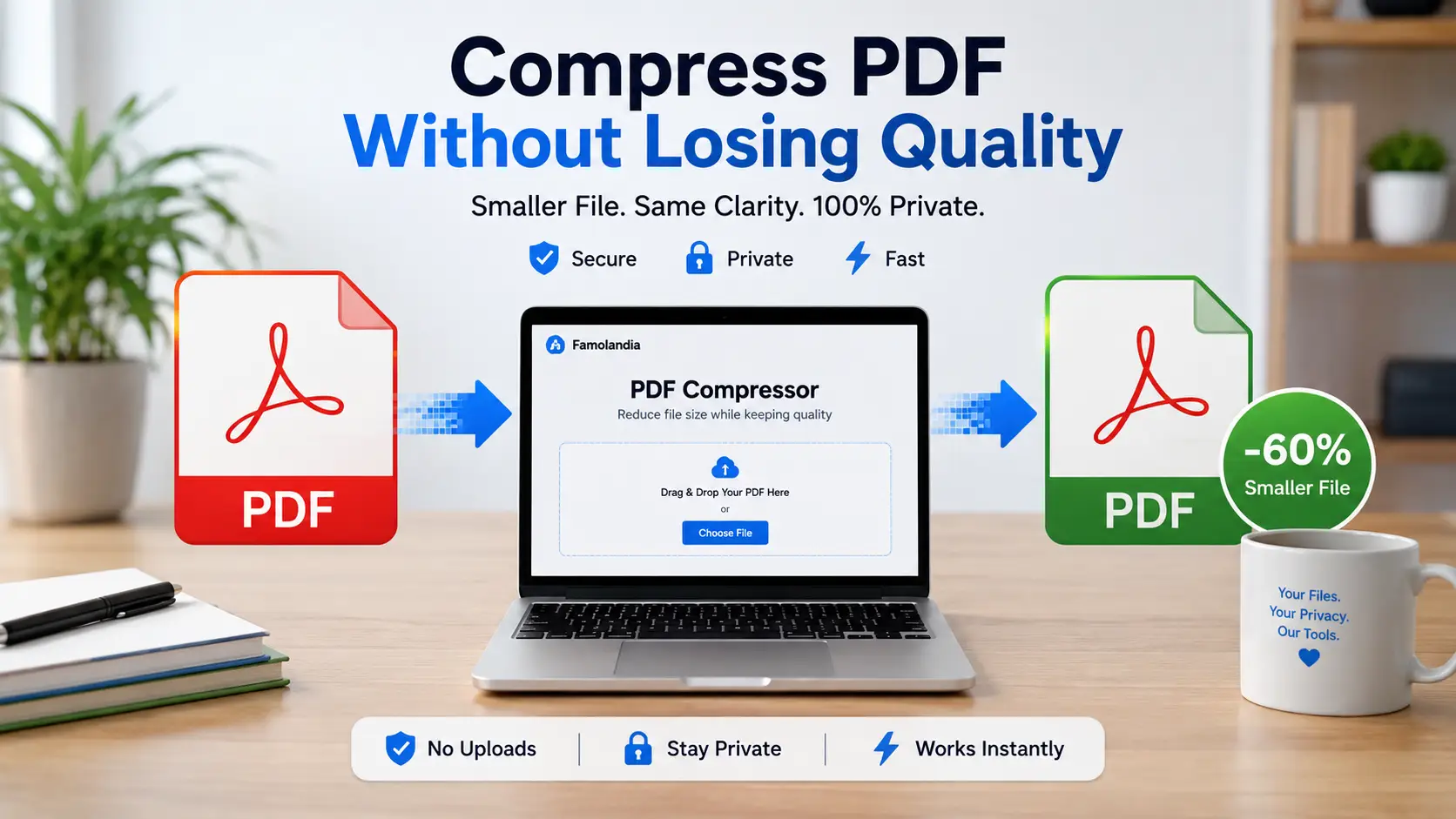
Compress PDF without losing quality when you need a smaller file for email, online forms, cloud storage, or faster sharing. Famolandia helps reduce PDF file size directly inside your browser, without uploading your document to an external server.
PDF compression is useful when a document exceeds an upload limit or takes too long to send. However, reducing file size can sometimes affect image sharpness, resolution, or readability. The goal is therefore not simply to create the smallest possible file, but to find a practical balance between size and visual quality.
With the Famolandia PDF Compressor, your document is processed locally on your device. This makes the process fast and private while giving you a smaller PDF that remains suitable for reading, sharing, and storing.
What PDF Compression Actually Does
A PDF may contain several types of data, including:
- Text and embedded fonts
- Photographs and scanned pages
- Diagrams and illustrations
- Metadata
- Repeated or unnecessary internal data
Compression attempts to reduce the amount of storage required by these elements. Depending on the document, the process may optimize images, remove unnecessary information, or reorganize internal PDF data more efficiently.
A text-based PDF is often easier to compress without noticeable changes. A scanned document containing many high-resolution images usually requires more aggressive optimization and may show a slight reduction in image detail.
How to Compress a PDF Without Losing Quality
Step 1: Open the PDF Compressor
Go to the Compress PDF tool. The tool runs directly in your browser, so your file does not need to be uploaded to Famolandia or another remote server.
Step 2: Select Your PDF
Drag and drop the PDF into the file area, or click the selection button and choose the document from your device.
Before continuing, make sure you are using the correct file. It is also sensible to keep the original PDF until you have checked the compressed version.
Step 3: Start the Compression
Begin the compression process and wait while your browser analyzes the document. Processing time depends on the PDF size, the number of pages, the amount of image content, and the performance of your device.
Step 4: Download the Smaller PDF
When compression is complete, download the optimized file. The original document remains unchanged on your device.
Step 5: Check the Result
Open the compressed PDF and inspect several pages. Pay particular attention to:
- Small text
- Charts and diagrams
- Scanned signatures
- Photographs
- Page backgrounds
- Important visual details
If everything remains readable and clear, the compressed file is ready to use.
Can a PDF Be Compressed With No Quality Loss?
Sometimes, yes. A PDF can often be reduced without visible quality loss when it contains selectable text, simple graphics, duplicated data, or inefficient internal structure.
However, very large scanned PDFs usually contain high-resolution images. Reducing those files substantially may require lowering image resolution or applying stronger image compression. In that situation, some technical quality loss may occur even when the difference is difficult to notice during normal viewing.
For this reason, “without losing quality” usually means preserving the document’s practical readability and appearance rather than guaranteeing that every internal image remains mathematically identical.
Why Some PDF Files Are So Large
A PDF may become unusually large for several reasons.
High-Resolution Images
Photos and scans saved at print-quality resolution can add many megabytes to a document. This is common with scanned contracts, textbooks, reports, and image-heavy presentations.
Color Scans
A full-color scanned page usually requires more storage than a grayscale or black-and-white page. Documents containing hundreds of color scans can therefore become very large.
Embedded Fonts
Some PDFs include complete font files even when only a small number of characters are used. Embedded fonts help preserve appearance, but they can increase file size.
Unoptimized Export Settings
Documents exported from design software or office applications may use print-oriented settings, even when the PDF is only intended for screen viewing.
Unused Metadata and Internal Data
Editing history, thumbnails, metadata, and redundant internal objects can also contribute to the final file size.
Tips for Keeping PDF Quality Clear
- Keep the original PDF as a backup.
- Avoid repeatedly compressing the same compressed file.
- Check small text after compression.
- Use moderate compression for business and legal documents.
- Use stronger compression mainly when file-size limits are strict.
- Open the final file on another device before sending it.
Repeated compression can gradually reduce image quality. For the best result, always compress from the original document rather than from a file that has already been optimized several times.
When PDF Compression Is Useful
Reducing PDF file size can help when:
- An email provider rejects a large attachment
- An online application has a file-size limit
- A document loads slowly on mobile devices
- You need to save cloud storage space
- You are sharing several PDFs at once
- You want faster document transfers
Privacy and Browser-Based Compression
Many online PDF services require users to upload documents to a remote server. That can be inconvenient when a file contains private, professional, financial, or personal information.
Famolandia uses a browser-based approach. The compression process runs locally on your device, and your PDF does not need to leave your browser. This reduces unnecessary file transfers and gives you greater control over your documents.
You can learn more about this approach in our guide on why client-side file tools are safer. That related article will become active after its migration to WordPress.
Compression Versus Conversion
Compression reduces the size of an existing PDF while keeping it as a PDF. Conversion changes the file into another format.
For example, when you need to edit the document’s text rather than merely reduce its size, read our guide on how to convert PDF to editable Word text.
Final Checklist
Before sending or uploading the compressed PDF, confirm that:
- The file opens correctly
- All pages are present
- Text remains readable
- Images remain clear enough
- Links still work
- The new file meets the required size limit
Use the free Famolandia PDF Compressor to reduce PDF file size privately inside your browser. Keep the original document, review the optimized result, and choose clarity over extreme compression whenever the document contains important information.
Leave a Reply