Tag: PDF

  • How to Convert JPG to PDF and Combine Images into One File

    How to Convert JPG to PDF and Combine Images into One File

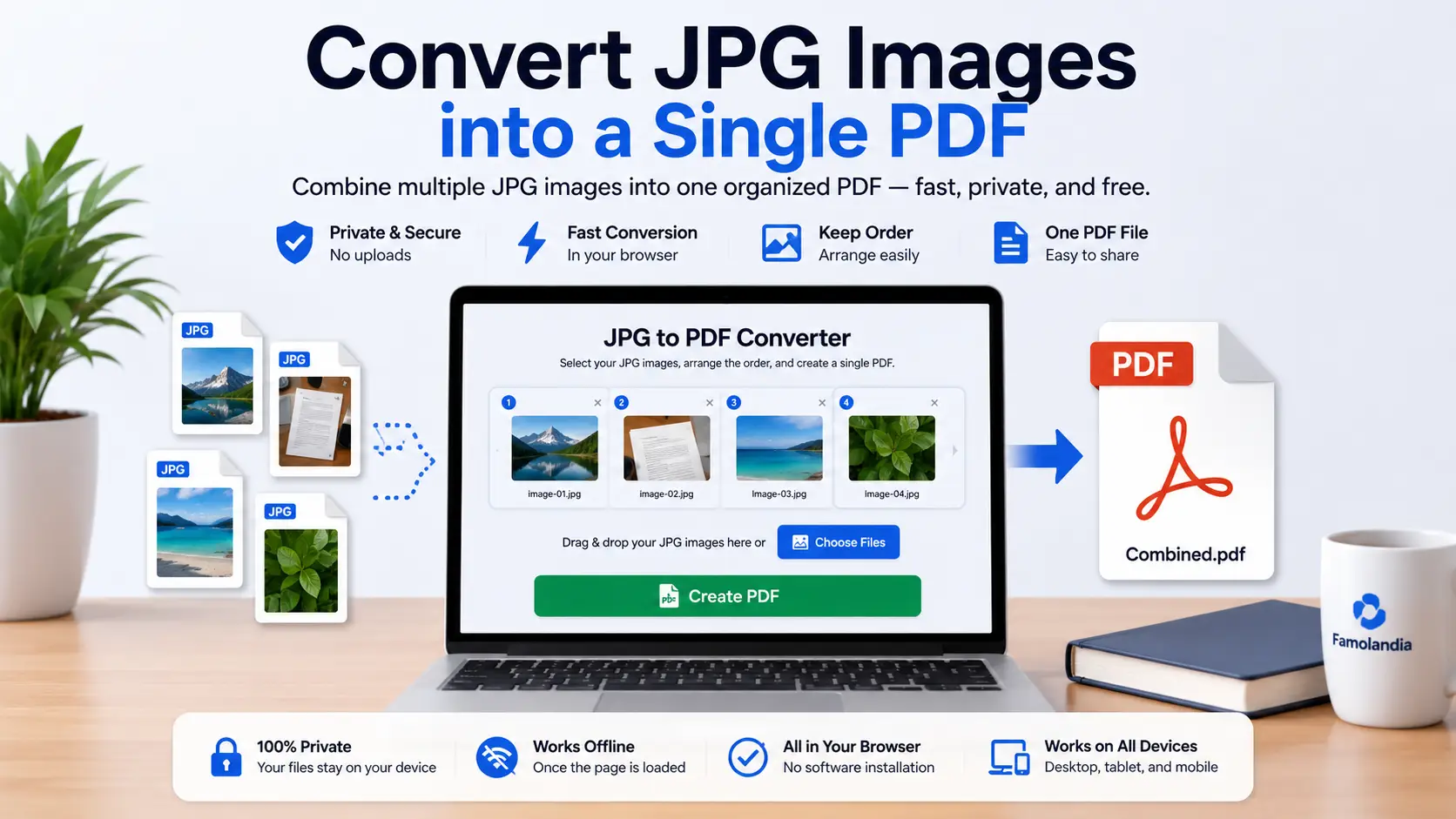
    Convert JPG to PDF when you need to combine photos, scanned pages, receipts, screenshots, or other images into one organized document. Famolandia lets you create a PDF directly inside your browser without uploading your images to a remote server.

    A single PDF is often easier to store, send, print, and review than a folder containing several separate image files. Instead of attaching ten JPG images to an email, you can place them into one PDF in the correct order.

    The Famolandia JPG to PDF tool uses browser-based processing. Your selected images stay on your device while the PDF is created.

    Why Convert JPG Images to PDF?

    JPG is one of the most widely used image formats. It works well for photographs, screenshots, scanned documents, and images captured with a phone. However, managing many separate JPG files can become inconvenient.

    Converting those images into a PDF provides several practical benefits:

    • Multiple images can be stored in one document
    • The page order remains organized
    • The document is easier to email or share
    • The PDF can be opened on most computers and mobile devices
    • Images can be reviewed or printed as a single file
    • Receipts and scanned pages can be kept together

    A PDF is especially useful when the images belong to the same project, application, report, portfolio, or set of records.

    How to Convert JPG to PDF

    You can use the free Famolandia JPG to PDF converter without creating an account.

    Step 1: Open the JPG to PDF Tool

    Open the converter in your browser. The conversion interface will appear directly on the page, and no software installation is required.

    Step 2: Select Your JPG Images

    Choose the JPG images you want to include in the PDF. You can select several related images, such as scanned pages, phone photographs, receipts, or screenshots.

    Before selecting the files, it is helpful to rename or arrange them in the order in which they should appear.

    Step 3: Check the Image Order

    Review the order of the selected images carefully. Each image will become a separate page in the resulting PDF.

    For example, when converting a scanned document, the first scanned page should appear first, followed by the second page and the remaining pages in sequence.

    Step 4: Create the PDF

    Start the conversion after confirming that the correct images have been selected. The tool processes the files locally in your browser and builds one PDF document.

    Step 5: Download and Review the File

    Download the completed PDF and open it before deleting the original images. Confirm that all pages are present, readable, and arranged correctly.

    How Multiple JPG Images Become One PDF

    When you combine JPG images into a PDF, each selected image becomes a page. A group of eight JPG files therefore creates a PDF containing eight image pages.

    The tool uses the image dimensions when creating the PDF pages. This helps avoid unnecessary resizing during the conversion process.

    However, images captured from different devices may have different orientations or proportions. One image may be vertical while another is horizontal. Reviewing the result after conversion is therefore important.

    Common Reasons to Combine JPG Images into PDF

    Scanned Documents

    A phone camera or scanner may save every page as a separate image. Combining those files into one PDF recreates the document in a more convenient format.

    Receipts and Expense Records

    Receipts can be photographed individually and combined into a monthly or project-based PDF. This makes them easier to archive and send.

    School and Work Assignments

    Handwritten pages, diagrams, worksheets, and supporting images can be assembled into a single document before submission.

    Portfolios and Presentations

    Design samples, photographs, sketches, or project images can be placed into one portable PDF for easier sharing.

    Screenshots

    Related screenshots from a website, application, tutorial, or conversation can be combined into a sequential document instead of remaining as disconnected image files.

    Tips for Better JPG-to-PDF Results

    Use Clear Source Images

    The PDF cannot restore details that are missing from the original images. Blurry, dark, or heavily compressed JPG files will remain unclear after conversion.

    Rotate Images Before Conversion

    Check whether each image is upright. Rotating the files before creating the PDF avoids pages appearing sideways or upside down.

    Crop Unnecessary Background Areas

    Scanned documents often contain desk surfaces, shadows, or empty margins. Cropping those areas can make the final PDF cleaner and easier to read.

    Use a Consistent Image Orientation

    When possible, keep all document pages in portrait orientation or all presentation images in landscape orientation. Consistency improves the reading experience.

    Keep the Originals

    Do not delete the JPG files until you have opened and checked the final PDF. The original images may still be needed if the pages must be reordered or corrected.

    Does Converting JPG to PDF Improve Image Quality?

    Converting a JPG file to PDF does not improve the original image resolution. The PDF acts as a container for the image rather than recreating missing details.

    A low-resolution JPG will remain low resolution inside the PDF. For the best result, begin with the clearest available version of each image.

    If the completed PDF becomes larger than expected, you can use the Famolandia PDF Compressor. You can also read our guide on how to compress a PDF without losing quality.

    Is It Safe to Convert JPG to PDF Online?

    Many online converters upload files to external servers for processing. That means personal images, identification documents, receipts, or business records may leave your device during the conversion.

    Famolandia takes a different approach. The JPG-to-PDF conversion runs inside your browser, so the selected images do not need to be uploaded to Famolandia for processing.

    This browser-based method is especially useful when working with private photographs, scanned forms, financial records, or confidential documents.

    JPG to PDF Versus PDF Compression

    JPG-to-PDF conversion and PDF compression solve different problems.

    • JPG to PDF combines one or more image files into a PDF document.
    • PDF compression attempts to reduce the size of an existing PDF.

    You may use both tools in sequence. First combine the images into one PDF, then compress the completed document when its file size is too large for email or online submission.

    Final Checklist

    Before sharing the completed PDF, confirm that:

    • Every required JPG image is included
    • The pages appear in the correct order
    • No page is sideways or upside down
    • Text and important image details remain readable
    • The PDF opens correctly on your device
    • The file size is suitable for its intended use

    Use the free Famolandia JPG to PDF converter to combine images privately in your browser. Select your files, create the PDF, review the result, and download one organized document.

    Frequently Asked Questions

    Can I combine multiple JPG images into one PDF?

    Yes. Select the related JPG images, place them in the required order, and create one PDF in which each image becomes a page.

    Are my images uploaded during conversion?

    No. Famolandia processes the selected images locally inside your browser rather than uploading them to a remote conversion server.

    Does converting JPG to PDF reduce image quality?

    The conversion does not improve the source image, and the visible quality depends primarily on the original JPG files. Begin with clear, properly sized images for the best result.

    Can I convert phone photos into a PDF?

    Yes. Phone photographs can be combined into a PDF, although you should crop, rotate, and review them before conversion.

    Why is my completed PDF large?

    High-resolution images can produce a large PDF. After checking the document, use a PDF compressor when a smaller file is required.
  • How to Compress a PDF Without Losing Quality

    How to Compress a PDF Without Losing Quality

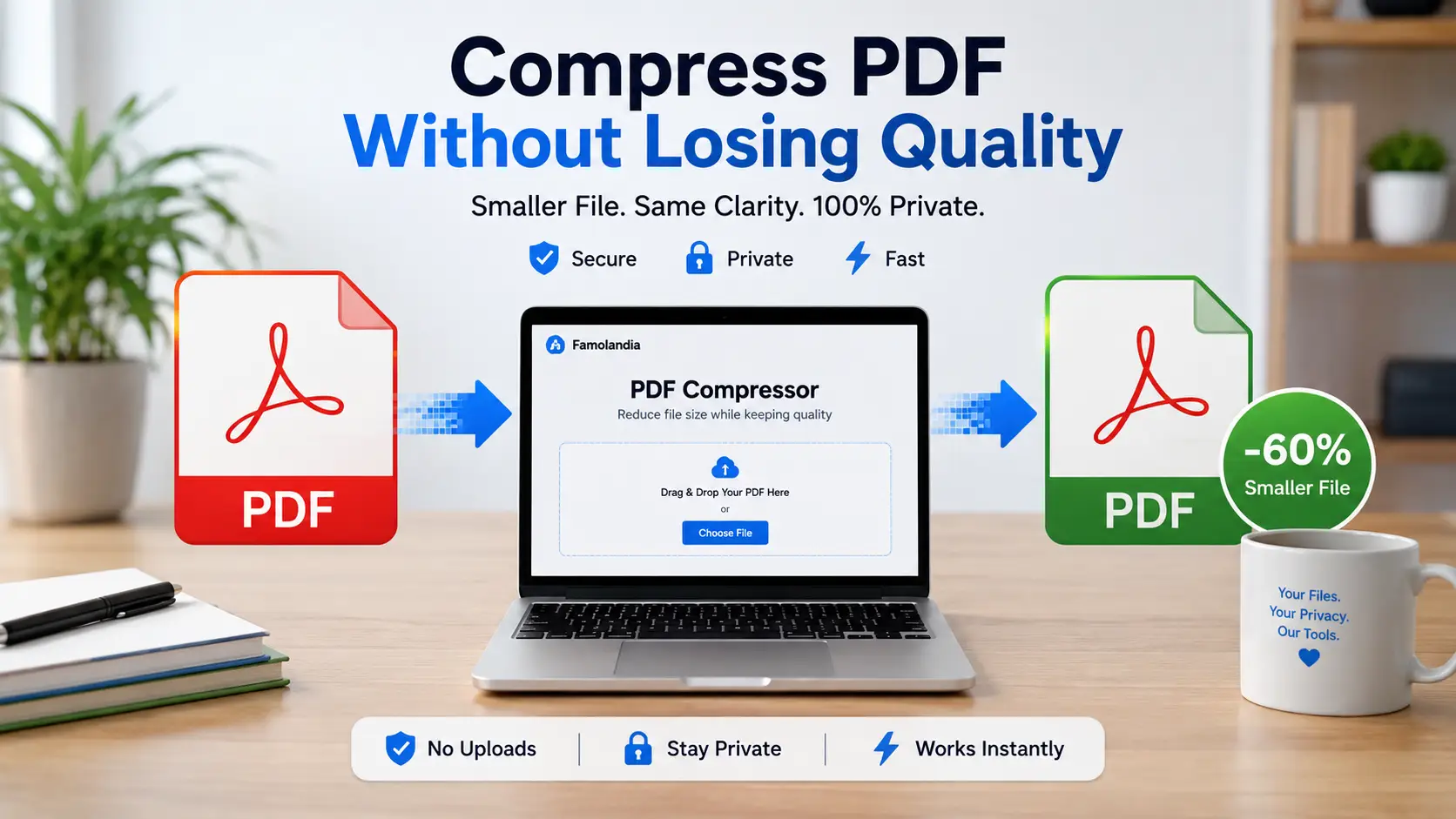
    Compress PDF without losing quality when you need a smaller file for email, online forms, cloud storage, or faster sharing. Famolandia helps reduce PDF file size directly inside your browser, without uploading your document to an external server.

    PDF compression is useful when a document exceeds an upload limit or takes too long to send. However, reducing file size can sometimes affect image sharpness, resolution, or readability. The goal is therefore not simply to create the smallest possible file, but to find a practical balance between size and visual quality.

    With the Famolandia PDF Compressor, your document is processed locally on your device. This makes the process fast and private while giving you a smaller PDF that remains suitable for reading, sharing, and storing.

    What PDF Compression Actually Does

    A PDF may contain several types of data, including:

    • Text and embedded fonts
    • Photographs and scanned pages
    • Diagrams and illustrations
    • Metadata
    • Repeated or unnecessary internal data

    Compression attempts to reduce the amount of storage required by these elements. Depending on the document, the process may optimize images, remove unnecessary information, or reorganize internal PDF data more efficiently.

    A text-based PDF is often easier to compress without noticeable changes. A scanned document containing many high-resolution images usually requires more aggressive optimization and may show a slight reduction in image detail.

    How to Compress a PDF Without Losing Quality

    Step 1: Open the PDF Compressor

    Go to the Compress PDF tool. The tool runs directly in your browser, so your file does not need to be uploaded to Famolandia or another remote server.

    Step 2: Select Your PDF

    Drag and drop the PDF into the file area, or click the selection button and choose the document from your device.

    Before continuing, make sure you are using the correct file. It is also sensible to keep the original PDF until you have checked the compressed version.

    Step 3: Start the Compression

    Begin the compression process and wait while your browser analyzes the document. Processing time depends on the PDF size, the number of pages, the amount of image content, and the performance of your device.

    Step 4: Download the Smaller PDF

    When compression is complete, download the optimized file. The original document remains unchanged on your device.

    Step 5: Check the Result

    Open the compressed PDF and inspect several pages. Pay particular attention to:

    • Small text
    • Charts and diagrams
    • Scanned signatures
    • Photographs
    • Page backgrounds
    • Important visual details

    If everything remains readable and clear, the compressed file is ready to use.

    Can a PDF Be Compressed With No Quality Loss?

    Sometimes, yes. A PDF can often be reduced without visible quality loss when it contains selectable text, simple graphics, duplicated data, or inefficient internal structure.

    However, very large scanned PDFs usually contain high-resolution images. Reducing those files substantially may require lowering image resolution or applying stronger image compression. In that situation, some technical quality loss may occur even when the difference is difficult to notice during normal viewing.

    For this reason, “without losing quality” usually means preserving the document’s practical readability and appearance rather than guaranteeing that every internal image remains mathematically identical.

    Why Some PDF Files Are So Large

    A PDF may become unusually large for several reasons.

    High-Resolution Images

    Photos and scans saved at print-quality resolution can add many megabytes to a document. This is common with scanned contracts, textbooks, reports, and image-heavy presentations.

    Color Scans

    A full-color scanned page usually requires more storage than a grayscale or black-and-white page. Documents containing hundreds of color scans can therefore become very large.

    Embedded Fonts

    Some PDFs include complete font files even when only a small number of characters are used. Embedded fonts help preserve appearance, but they can increase file size.

    Unoptimized Export Settings

    Documents exported from design software or office applications may use print-oriented settings, even when the PDF is only intended for screen viewing.

    Unused Metadata and Internal Data

    Editing history, thumbnails, metadata, and redundant internal objects can also contribute to the final file size.

    Tips for Keeping PDF Quality Clear

    • Keep the original PDF as a backup.
    • Avoid repeatedly compressing the same compressed file.
    • Check small text after compression.
    • Use moderate compression for business and legal documents.
    • Use stronger compression mainly when file-size limits are strict.
    • Open the final file on another device before sending it.

    Repeated compression can gradually reduce image quality. For the best result, always compress from the original document rather than from a file that has already been optimized several times.

    When PDF Compression Is Useful

    Reducing PDF file size can help when:

    • An email provider rejects a large attachment
    • An online application has a file-size limit
    • A document loads slowly on mobile devices
    • You need to save cloud storage space
    • You are sharing several PDFs at once
    • You want faster document transfers

    Privacy and Browser-Based Compression

    Many online PDF services require users to upload documents to a remote server. That can be inconvenient when a file contains private, professional, financial, or personal information.

    Famolandia uses a browser-based approach. The compression process runs locally on your device, and your PDF does not need to leave your browser. This reduces unnecessary file transfers and gives you greater control over your documents.

    You can learn more about this approach in our guide on why client-side file tools are safer. That related article will become active after its migration to WordPress.

    Compression Versus Conversion

    Compression reduces the size of an existing PDF while keeping it as a PDF. Conversion changes the file into another format.

    For example, when you need to edit the document’s text rather than merely reduce its size, read our guide on how to convert PDF to editable Word text.

    Final Checklist

    Before sending or uploading the compressed PDF, confirm that:

    • The file opens correctly
    • All pages are present
    • Text remains readable
    • Images remain clear enough
    • Links still work
    • The new file meets the required size limit

    Use the free Famolandia PDF Compressor to reduce PDF file size privately inside your browser. Keep the original document, review the optimized result, and choose clarity over extreme compression whenever the document contains important information.

  • How to Convert PDF to Editable Word Text

    How to Convert PDF to Editable Word Text

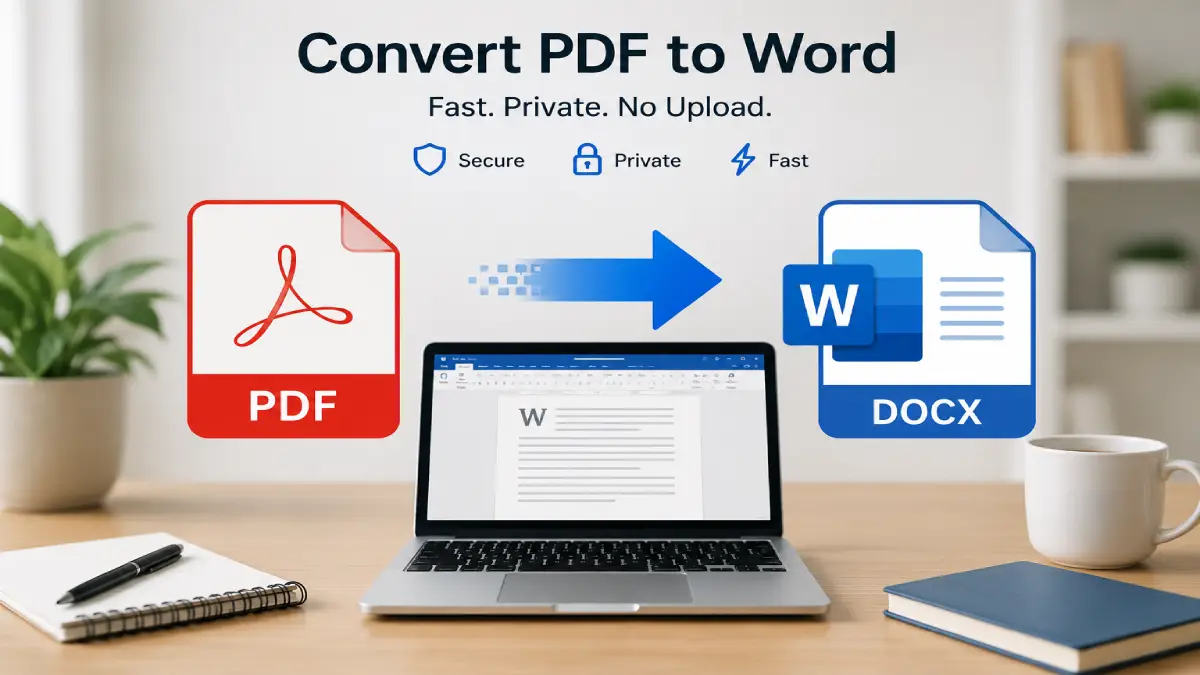
    Convert PDF to Word when you need to update text, reuse paragraphs, correct mistakes, or continue working on a document. Famolandia extracts selectable text from a digital PDF and creates an editable Word document directly inside your browser.

    However, a PDF is primarily designed to preserve how a document looks. It is not designed to make editing easy. That is why PDF-to-Word conversion does not always reproduce the original layout exactly.

    Famolandia’s PDF to Word Converter takes a practical approach: it extracts selectable text from a digital PDF and writes that text into an editable Word document.

    What the PDF to Word Tool Does

    The tool reads the text layer contained inside your PDF and creates a downloadable .docx file.

    It works best with digital PDFs created or exported from applications such as:

    • Microsoft Word
    • Google Docs
    • LibreOffice
    • Adobe InDesign
    • Similar document-editing software

    The extracted text is rebuilt into editable paragraphs that you can open in Microsoft Word, Google Docs, Apple Pages, or another compatible editor.

    How to Convert PDF to Word Online

    Step 1: Open the PDF to Word Converter

    Open the

    Famolandia PDF to Word Converter
    .

    The conversion process runs directly inside your browser.

    Step 2: Select Your PDF

    Drag and drop your PDF into the upload area, or click the selection area and choose a file from your device.

    For the best results, use a PDF that contains selectable text.

    A quick way to check is to open the PDF and try highlighting a sentence with your mouse. If you can select the text, the document probably contains a usable text layer.

    Step 3: Start the Conversion

    Click the Convert to Word button.

    The tool reads the PDF page by page, extracts its text, and creates an editable Word document.

    Processing speed depends mainly on:

    • The number of pages
    • The size of the PDF
    • The performance and available memory of your device

    Because processing happens locally, the file does not need to be uploaded to a remote conversion server.

    Step 4: Download the Word Document

    When processing finishes, download the generated .docx file.

    Open it in your preferred word processor and review the result before editing or sharing it.

    What Is Preserved?

    The tool is designed to preserve the editable text contained in the PDF.

    Depending on how the original PDF was created, the output may preserve:

    • Words and paragraphs
    • Basic reading order
    • Line grouping
    • Arabic and other right-to-left text
    • Unicode characters supported by the PDF text layer

    Arabic and other right-to-left scripts are written with bidirectional paragraph settings when valid Unicode text is available.

    What Is Not Preserved?

    The converter does not reproduce the original PDF visually or create a pixel-perfect copy.

    The following elements may not be preserved:

    • Exact page layout
    • Tables
    • Images
    • Embedded fonts
    • Columns
    • Text positioning
    • Headers and footers
    • Colors and decorative formatting
    • Complex spacing

    The purpose of the tool is to produce clean, editable text rather than duplicate every visual detail of the PDF.

    After opening the generated Word file, you may need to adjust headings, spacing, lists, or page breaks manually.

    Does It Work With Scanned PDFs?

    A scanned PDF usually contains images of pages rather than real selectable text.

    Examples include:

    • Documents scanned with a printer
    • Photos converted into PDF pages
    • Image-only books
    • Scanned forms
    • Old archived documents

    These files require Optical Character Recognition, commonly called OCR.

    OCR analyzes visible letters inside an image and converts them into machine-readable text. The current Famolandia PDF to Word tool does not include OCR.

    If no selectable text is detected, the generated document may contain a warning explaining that the PDF is scanned or image-only.

    Why Can Some Scanned-Looking PDFs Still Work?

    Some PDFs look like scanned images but contain a hidden text layer underneath each page.

    This hidden layer may have been added by scanning software or an OCR application.

    If the hidden text layer contains valid Unicode text, Famolandia may still be able to extract it. If the layer is missing, damaged, or incorrectly encoded, the extracted result may be empty or inaccurate.

    Is the Conversion Private?

    Yes. The conversion runs locally inside your browser.

    Your PDF is not sent to Famolandia for processing, and the file does not need to be stored on an external conversion server.

    This is especially useful for documents containing:

    • Personal information
    • School or work documents
    • Financial information
    • Contracts
    • Private correspondence
    • Internal reports

    You should still review any converted document carefully before sharing it.

    Tips for Better Results

    • Use a digital PDF with selectable text whenever possible.
    • Do not expect the Word document to look exactly like the original PDF.
    • Use the converted file as a clean starting point for further editing.
    • Rebuild complex tables, headings, and formatting manually when necessary.
    • Check whether the original PDF has a valid text layer if the extracted text appears incomplete.

    Convert Your PDF Privately

    Use the free

    Famolandia PDF to Word Converter

    to extract selectable text into an editable .docx document directly in your browser.

    No account is required, and your file stays on your device.